

Every search starts with a translation. You have a question in your head, such as which tasks are overdue for finance, and you convert it into fields: assigned to, due date, before today. If you search several times a day, you know the cost: hunting for field names, picking dates and clicking through lists. In ccmEnterprise 5.5, natural language search lets you skip the translation. You type the question, and the search fills in the fields for you.
Natural language search: type it the way you would say it
Open the search screen and click AI Assistance to use natural language search. Type what you are looking for in plain language, in English or French. For example: “tasks assigned to finance that are past their deadline.” ccmEnterprise reads the question, fills in the search criteria, and waits for you.
Done by hand, that search means scrolling the field list, setting assigned to finance, then setting the due date to before today. Here, it takes one sentence. You can change any field, then click Apply to fill in the search fields and Go to run the search.
That last step matters. The assistant does not hide the search from you. It shows exactly which fields it filled in, so you can check the logic before you trust the results.
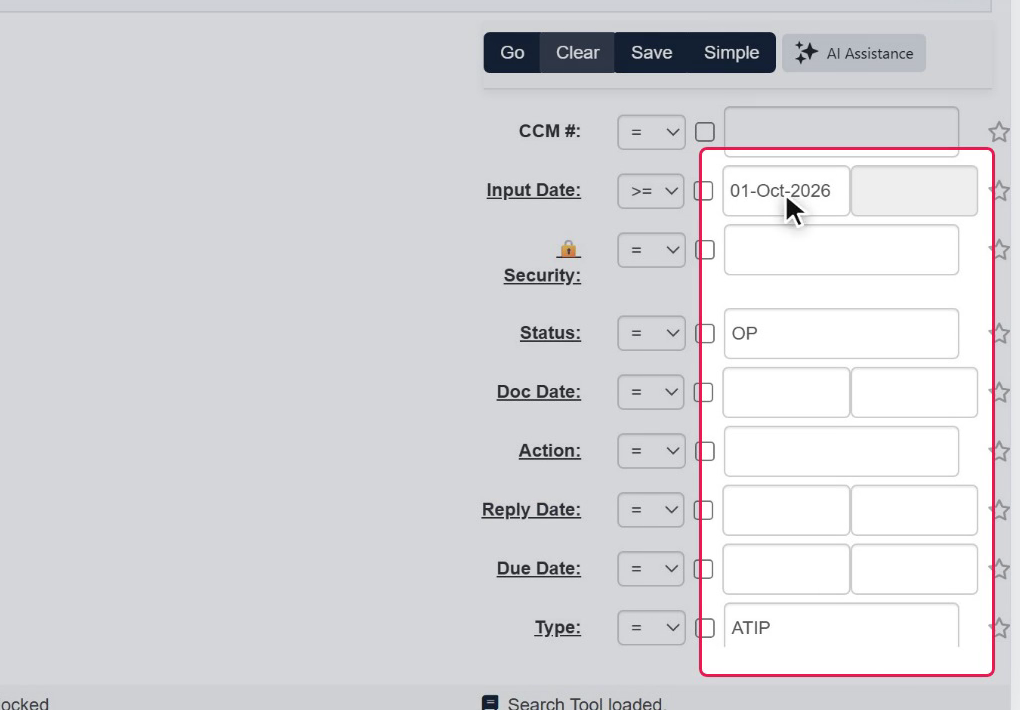
The criteria fill in the search fields, ready to review before you run the search.
Ask a longer question
Try something with more moving parts: “Show me open ATIP requests received this month.” The assistant sets the type to ATIP, the status to open and the input date to the start of the month. That is three fields you did not have to find, open and fill in yourself.
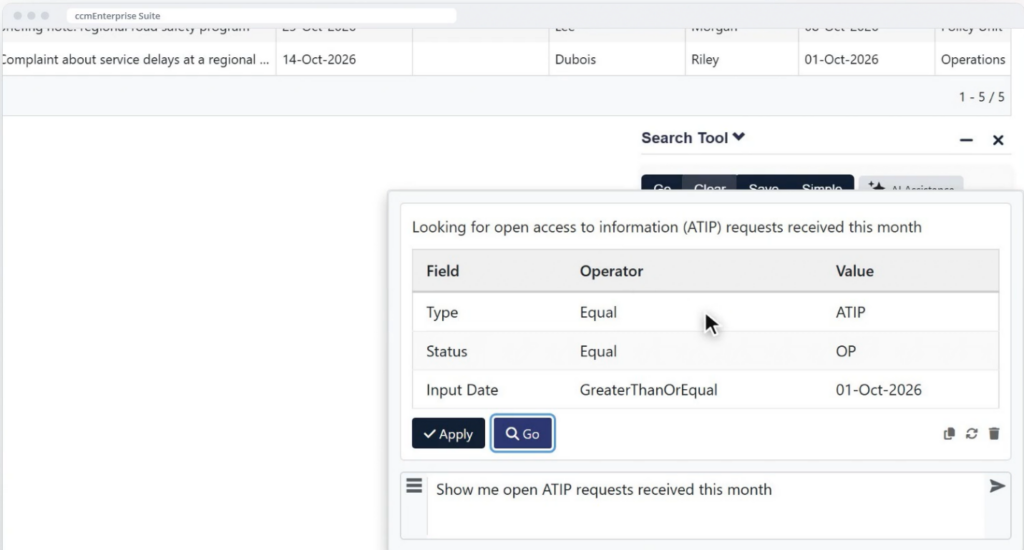
The assistant turns the question into criteria you can check: type ATIP, status open, and an input date from the start of the month.
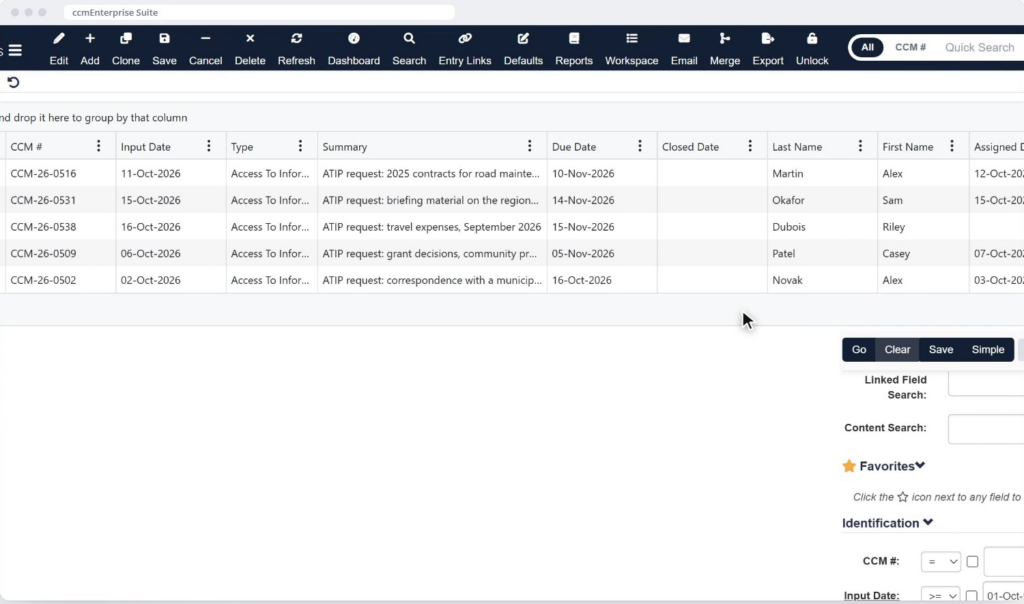
One click on Go, and the matching records are listed.
Works in English and French
Ask in French and the search works the same way. In this example, “Montre-moi les invitations reçues au cours des deux derniers mois” becomes a search for invitations from the last two months, and the criteria are shown for you to review.
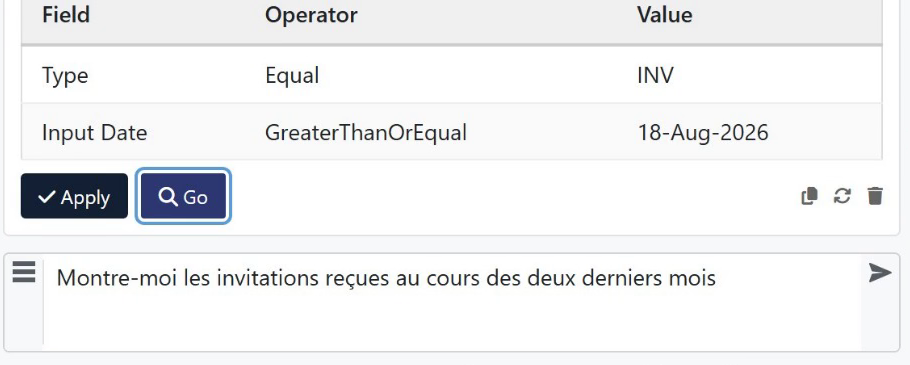
The same review step, in French.
Say “this month,” not a date range
Relative dates remove another chore. Instead of picking a start date and an end date, choose a relative option such as this month, last month or this quarter. You get the period you mean without opening a calendar.
Pin the fields you use every day
Some applications have 200 fields, and you search on only a handful. Pin the ones you rely on, such as the record number, type, close date, assigned to and task completion date. They stay at the top of the search panel, so you stop scrolling to find them.
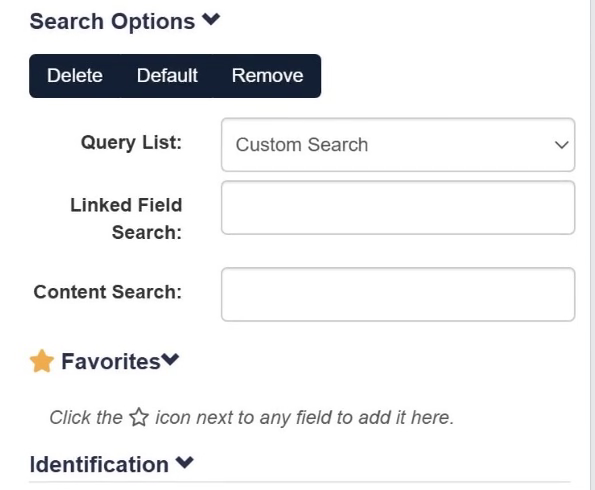
The Favorites section of the Search Tool. Click the star icon next to any field to add it.
Find what is missing
Search can also count. Look for records that have no tasks, or dockets that have no attachments. These are the checks that usually call for a report or a manual scan.
Three habits that help
- Name the values you use. “Finance” and “complaint” match how your application is set up, so the assistant has something to match.
- Review before you apply. Read the filled fields, and change any that are not what you meant.
- Pin first, then ask. Pin your daily fields, and use the question box for everything else.
Why it matters
Search is the step your team repeats most, and it asks everyone to know the field names in your application. That knowledge is hard to pass to a new colleague. Natural language search lets newer staff search the way they talk, then review the fields and lets experienced staff skip the hunt. It also keeps the logic visible. Anyone can read the filled fields and see how a result was found, which helps when a colleague asks why a record did or did not appear.
ccmEnterprise 5.5 is in development, and details may change before release.
See it with your own records
Watch the full search demo here: Natural language search. Then tell us how your team searches today. We will prepare a tailored demo using your terminology and your record types.